
NGINX, which is known for its great performance, scalability, and flexibility, has grown as a popular alternative for powering websites and applications. Its capacity to manage heavy traffic loads, serve static material quickly, and function as a configurable reverse proxy established its place as a key component of modern online infrastructure.
Ubuntu a popular and user-friendly Linux distribution provides an ideal environment for deploying NGINX. In this post, we will cover the process of install NGINX on Ubuntu 22.04 from basic installation, firewall configuration, testing, and essential management tasks.
Prerequisites
Before starting NGINX install Ubuntu ensure you have the following:
- An Ubuntu 22.04 server
- SSH access to your server
- A non-root user with sudo privileges
Installing NGINX on Ubuntu
Following are steps described below to install NGINX on Linux based Ubuntu 22.04 operating system:
Step 1: Update and Upgrade System
It is important to have an up-to-date system before installing any new software. Open your terminal and run the following commands:
sudo apt update && sudo apt upgrade -y
These commands will refresh the package lists and install any available updates.
Step 2: Install NGINX
NGINX is readily available in the Ubuntu repositories. Install it using the following command:
sudo apt install nginx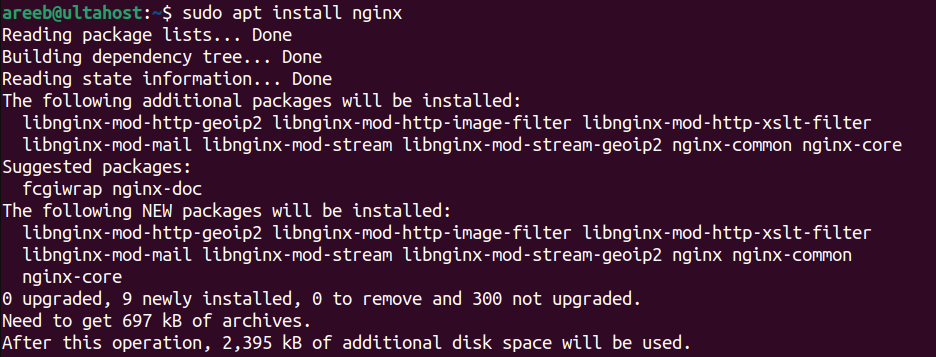
This will install NGINX and its dependencies on your Ubuntu system.
Step 3: Configure Firewall (UFW)
If you have install UFW on Ubuntu system you will need to allow HTTP and HTTPS traffic:
sudo ufw allow 'Nginx Full'This command opens the necessary ports for NGINX.
Step 4: Verify NGINX Installation
To check if NGINX is running and accessible, open a web browser and navigate to your server’s IP address. You should see the default NGINX welcome page.

Step 5: Manage NGINX Process
To start, stop, restart, or reload NGINX, use one of the following commands:
sudo systemctl start nginxInstall NGINX on Our Ubuntu Server!
Combine the power of the world’s most trusted Linux distro with the flexibility of a VPS. Experience lightning-fast performance.
To check your NGINX status type the following command:
sudo systemctl status nginx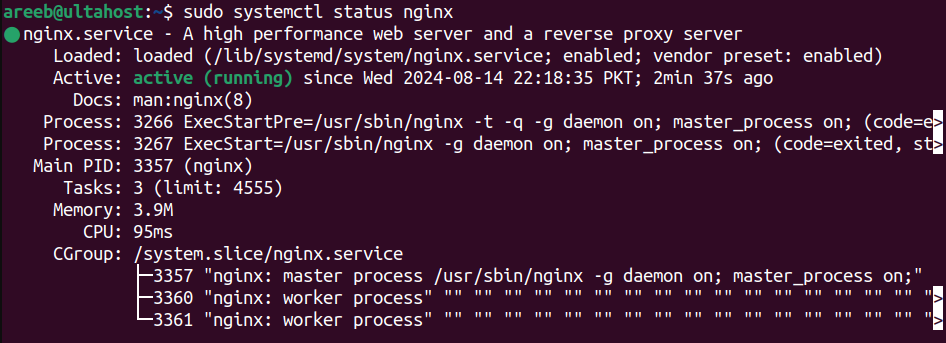
Step 6: Setting Up Server Blocks
To host multiple websites on a single server you will need to create server blocks. These configurations define how NGINX should handle requests for different domains.
1. To create directories for your websites use the following command:
sudo mkdir -p /var/www/example1 /var/www/example2Replace example1 and example2 with your desired domain names which is useful to manage multiple sites.
2. To assign ownership and permissions use the following command:
sudo chown -R $USER:$USER /var/www3. Create basic HTML files in the respective directories to test your configuration.
4. You can also create files in the server block in the /etc/nginx/sites-available directory for each website. For example:
sudo nano /etc/nginx/sites-available/example1Paste the following configuration replacing placeholders with your domain, document root, and other settings:
server {

listen 80;

server_name example1.com;

root /var/www/example1;

index index.html index.htm;

location / {

try_files $uri $uri/ /index.html;

}

}
5. Create a symbolic link in Linux to the configuration file in the /etc/nginx/sites-enabled directory:
sudo ln -s /etc/nginx/sites-available/example1 /etc/nginx/sites-enabled/6. To test and restart NGINX use the following command:
sudo nginx -t && sudo systemctl restart nginxImportant NGINX Files and Directories
Following are important NGINX files and directories described below:
- /etc/nginx/nginx.conf: Main NGINX configuration file
- /etc/nginx/sites-available: Directory for server block configuration files
- /etc/nginx/sites-enabled: Directory for enabled server block configuration files
- /var/log/nginx/access.log: Access log file
- /var/log/nginx/error.log: Error log file
NGINX Optimization
NGINX offers extensive configuration options to increase performance and security. Some common configurations include:
- SSL/TLS certificates: For secure communication (HTTPS)
- Load balancing: Distributing traffic across multiple servers
- Caching: Improving performance by storing static content
- Proxy server: Forwarding requests to other servers
- Custom error pages: Providing informative error messages
Conclusion
By successfully installing and configuring NGINX on Ubuntu 22.04 you have a solid foundation for a high-performance and scalable web infrastructure. NGINX’s versatility as a web server reverse proxy and load balancer empowers you to optimize website delivery enhance security and improve overall user experience.
Ultimately, the best web server for you depends on your unique project requirements. Try our free VPS hosting that is reliable to you with scalability that adapts your resources to meet your growing needs. Explore Ultahost VPS plans and find the perfect fit.
FAQ
What is NGINX?
NGINX is a web server that can also be used as a reverse proxy, load balancer, and more.
How do I install NGINX on Ubuntu 22.04?
You can install NGINX using the command: sudo apt install nginx.
Do I need to configure NGINX after installation?
Yes, after installing NGINX, you will need to configure it to suit your needs.
How do I start NGINX on Ubuntu 22.04?
Use the command sudo systemctl start nginx to start NGINX.
How do I check if NGINX is running?
You can check by visiting your server’s IP address in a web browser or using systemctl status nginx.
Can I use NGINX as a reverse proxy on Ubuntu 22.04?
Yes, NGINX can be configured as a reverse proxy to forward client requests to other servers.
How do I uninstall NGINX from Ubuntu 22.04?
You can remove NGINX using the command:
sudo apt remove nginx.