
RTMP stands for Real-Time Messaging Protocol and is a widely used protocol for delivering audio video and data over the internet. NGINX is a high-performance web server that can also function as an efficient RTMP server when combined with the appropriate module.
In this post, we will cover the process of setup NGINX RTMP on Ubuntu operating system. Furthermore, we will explore additional configurations and provide troubleshooting steps.
Prerequisites
Before we begin setup the Linux RTMP server make sure you have the following requirements:
- An Ubuntu server with root or sudo access.
- Basic understanding of Linux command line.
- A domain name is optional for external access.
- A video source like OBS, camera, etc..
Installing NGINX RTMP on Ubuntu
Always begin by updating and upgrading your Ubuntu system to ensure you have the latest packages. Type the following command:
sudo apt update && sudo apt upgrade -y
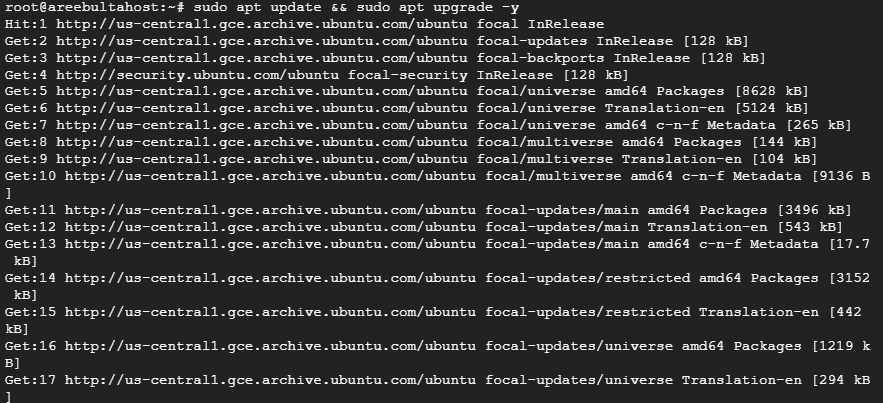
Now after that, you need to install NGINX on Ubuntu or you can run it along with the RTMP module. Run the following command:
sudo apt install nginx libnginx-mod-rtmp -y
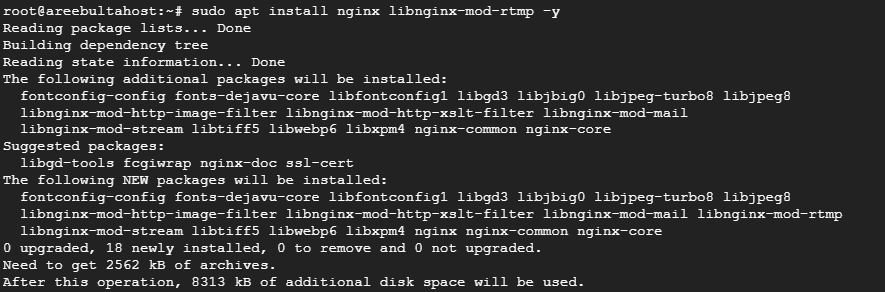
After downloading locate the NGINX configuration file for your RTMP server. For example, navigate the /etc/nginx/nginx.conf directory:
sudo nano /etc/nginx/nginx.confPaste the following configuration into the nginx.conf file after the HTTP block replacing placeholders with your desired settings:
rtmp {
server {
listen 1935;
chunk_size 4096;
application live {
live on;
record off;
}
}
}
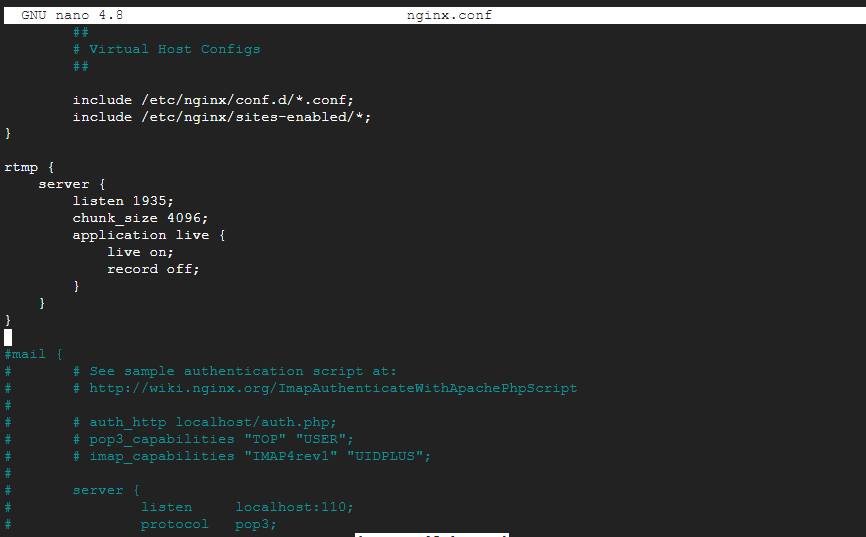
Explanation of configuration options:
- listen 1935: Specifies the port for the RTMP server.
- chunk_size 4096: Sets the chunk size for RTMP data.
- application live: Defines an application named “live”.
- live on: Enables live streaming for the application.
- record off: Disables recording by default.
Now check for any syntax errors in your NGINX configuration by typing the following command:
sudo nginx -tNext, restart the NGINX RTMP server to apply the changes and run the following:
sudo systemctl restart nginxSetting NGINX RTMP on Our Ubuntu VPS!
Combine the power of the world’s most trusted Linux distro with the flexibility of a VPS. Experience lightning-fast performance.
Also, you can check the NGINX active status by typing the following command:
sudo systemctl status nginx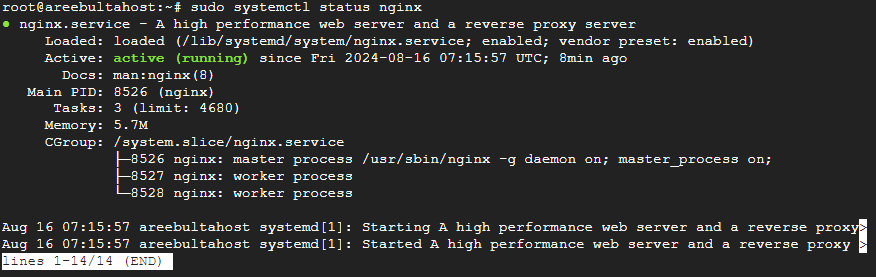
To check if your RTMP server is running, use a tool like netstat command:
sudo netstat -tulnp | grep nginx
You should see a line indicating that NGINX is listening on port 1935. Now you can access your RTMP server in third-party software like Open Broadcaster Software short for OBS by setting up the RTMP URL and stream key which is rtmp://<your-ipaddress>/live/<stream_key> then start streaming.
Additional Configuration
Following are additional configurations after installing RTMP NGINX on the Ubuntu operating system:
- To enable recording set
record on;in the application block. You can also specify a path for recording files using therecord_pathdirective. - To create HLS streams from your RTMP source you can use the
hlsmodule. - To protect your RTMP server you can implement authentication using basic auth or other methods.
- For high traffic you can load and balance multiple RTMP servers using NGINX.
- Use tools like
rtmpstator custom scripts to monitor your RTMP server’s performance.
Also, Read How to Set Up an Nginx Reverse Proxy.
Troubleshooting
If you encounter issues while installing the RTMP NGINX on Ubuntu consider the following:
- Check NGINX error logs for clues about problems.
- Verify firewall settings to ensure port 1935 is open.
- Test your RTMP source to make sure it is working correctly.
- Experiment with different configuration options to find the optimal settings for your setup.
Conclusion
By following these steps, you have successfully set up an RTMP server using NGINX on your Ubuntu server. This provides a foundation for building a live streaming platform or integrating RTMP into your applications. Remember to explore additional configuration options and troubleshooting techniques to advance your setup according to your specific requirements.
FAQ
What is RTMP?
RTMP (Real-Time Messaging Protocol) is a protocol used for streaming audio, video, and data over the internet.
What is NGINX?
NGINX is a web server that can also be used as a reverse proxy, load balancer, and streaming server.
Why use NGINX for RTMP streaming?
NGINX is lightweight, highly customizable, and supports RTMP for efficient live streaming.
What are system requirements for setting up RTMP with NGINX?
You need an Ubuntu server, basic command-line knowledge, and NGINX with the RTMP module installed.
How do I install NGINX with RTMP on Ubuntu?
You can install NGINX with the RTMP module by compiling it from the source or using a pre-built package.
How do I configure NGINX for RTMP streaming?
Edit the NGINX configuration file to include the RTMP module settings for streaming.
Can I stream to multiple platforms with NGINX RTMP?
Yes, NGINX RTMP can be configured to stream to multiple platforms simultaneously, like YouTube and Twitch.
https://ultahost.com/knowledge-base/setup-nginx-rtmp-on-ubuntu