
Open WebUI is a powerful tool designed for managing large language models (LLMs) effectively. As the demand for AI-driven applications continues to grow, having a user-friendly interface to interact with these models becomes essential. This article provides a comprehensive, step-by-step guide to installing Open WebUI on Ubuntu 24.04, ensuring you have everything you need to get started.
NOTE: Whilst these instructions help establish a OPEN WebUI itnerface for Ollama, we already had Ollama installedd and followed instructions from past the point of this. Therefore, this may have something to do with the fact that we are unable to select Models in the WebUI…
This section is a log of the SSH session showing the installation process before testing at port :3000
Install OPEN WebUI (for Ollama at https://ollama.tamertemel.net:3000)
With instructions from:
https://idroot.us/install-open-webui-ubuntu-24-04/
Using username “ollama”.
ollama@ollama.tamertemel.net’s password:
Welcome to Ubuntu 24.04.3 LTS (GNU/Linux 6.8.0-79-generic x86_64)
- Documentation: https://help.ubuntu.com
- Management: https://landscape.canonical.com
- Support: https://ubuntu.com/pro System information as of Tue 9 Sep 20:54:42 UTC 2025 System load: 0.05 Processes: 218
Usage of /: 17.3% of 97.87GB Users logged in: 0
Memory usage: 28% IPv4 address for enp6s18: 62.31.247.105
Swap usage: 0% - Strictly confined Kubernetes makes edge and IoT secure. Learn how MicroK8s
just raised the bar for easy, resilient and secure K8s cluster deployment. https://ubuntu.com/engage/secure-kubernetes-at-the-edge
Expanded Security Maintenance for Applications is not enabled.
3 updates can be applied immediately.
To see these additional updates run: apt list –upgradable
2 additional security updates can be applied with ESM Apps.
Learn more about enabling ESM Apps service at https://ubuntu.com/esm
Last login: Mon Sep 8 07:17:43 2025 from 62.31.247.108
ollama@panel:~$ ollama –version
Warning: could not connect to a running Ollama instance
Warning: client version is 0.11.10
ollama@panel:~$ su tamer
Password:
tamer@panel:/home/ollama$ sudo apt install docker.io
[sudo] password for tamer:
Reading package lists… Done
Building dependency tree… Done
Reading state information… Done
docker.io is already the newest version (27.5.1-0ubuntu3~24.04.2).
0 upgraded, 0 newly installed, 0 to remove and 7 not upgraded.
tamer@panel:/home/ollama$ sudo systemctl start docker
sudo systemctl enable docker
tamer@panel:/home/ollama$ sudo apt install podman
Reading package lists… Done
Building dependency tree… Done
Reading state information… Done
The following additional packages will be installed:
aardvark-dns buildah catatonit conmon containernetworking-plugins
fuse-overlayfs golang-github-containers-common
golang-github-containers-image libslirp0 libsubid4 netavark passt
slirp4netns uidmap
Suggested packages:
containers-storage
The following NEW packages will be installed:
aardvark-dns buildah catatonit conmon containernetworking-plugins
fuse-overlayfs golang-github-containers-common
golang-github-containers-image libslirp0 libsubid4 netavark passt podman
slirp4netns uidmap
0 upgraded, 15 newly installed, 0 to remove and 7 not upgraded.
Need to get 32.1 MB of archives.
After this operation, 130 MB of additional disk space will be used.
Do you want to continue? [Y/n] y
Get:1 http://gb.archive.ubuntu.com/ubuntu noble/universe amd64 netavark amd64 1. 4.0-4 [1,666 kB]
Get:2 http://gb.archive.ubuntu.com/ubuntu noble/universe amd64 aardvark-dns amd6 4 1.4.0-5 [881 kB]
Get:3 http://gb.archive.ubuntu.com/ubuntu noble-updates/main amd64 libsubid4 amd 64 1:4.13+dfsg1-4ubuntu3.2 [23.4 kB]
Get:4 http://gb.archive.ubuntu.com/ubuntu noble-updates/main amd64 uidmap amd64 1:4.13+dfsg1-4ubuntu3.2 [26.0 kB]
Get:5 http://gb.archive.ubuntu.com/ubuntu noble-updates/universe amd64 container networking-plugins amd64 1.1.1+ds1-3ubuntu0.24.04.3 [7,203 kB]
Get:6 http://gb.archive.ubuntu.com/ubuntu noble/universe amd64 golang-github-con tainers-image all 5.29.2-2 [33.4 kB]
Get:7 http://gb.archive.ubuntu.com/ubuntu noble-updates/universe amd64 golang-gi thub-containers-common all 0.57.4+ds1-2ubuntu0.2 [39.9 kB]
Get:8 http://gb.archive.ubuntu.com/ubuntu noble-updates/universe amd64 buildah a md64 1.33.7+ds1-1ubuntu0.24.04.3 [8,148 kB]
Get:9 http://gb.archive.ubuntu.com/ubuntu noble/universe amd64 catatonit amd64 0 .1.7-1 [307 kB]
Get:10 http://gb.archive.ubuntu.com/ubuntu noble/universe amd64 conmon amd64 2.1 .10+ds1-1build2 [35.2 kB]
Get:11 http://gb.archive.ubuntu.com/ubuntu noble/universe amd64 fuse-overlayfs a md64 1.13-1 [45.7 kB]
Get:12 http://gb.archive.ubuntu.com/ubuntu noble/main amd64 libslirp0 amd64 4.7. 0-1ubuntu3 [63.8 kB]
Get:13 http://gb.archive.ubuntu.com/ubuntu noble/universe amd64 passt amd64 0.0~ git20240220.1e6f92b-1 [163 kB]
Get:14 http://gb.archive.ubuntu.com/ubuntu noble-updates/universe amd64 podman a md64 4.9.3+ds1-1ubuntu0.2 [13.4 MB]
Get:15 http://gb.archive.ubuntu.com/ubuntu noble/universe amd64 slirp4netns amd6 4 1.2.1-1build2 [34.9 kB]
Fetched 32.1 MB in 2s (16.5 MB/s)
[master d0283fc] saving uncommitted changes in /etc prior to apt run
Author: tamer tamer@panel.circlex.uk
3 files changed, 6 insertions(+), 6 deletions(-)
Selecting previously unselected package netavark.
(Reading database … 207068 files and directories currently installed.)
Preparing to unpack …/00-netavark_1.4.0-4_amd64.deb …
Unpacking netavark (1.4.0-4) …
Selecting previously unselected package aardvark-dns.
Preparing to unpack …/01-aardvark-dns_1.4.0-5_amd64.deb …
Unpacking aardvark-dns (1.4.0-5) …
Selecting previously unselected package libsubid4:amd64.
Preparing to unpack …/02-libsubid4_1%3a4.13+dfsg1-4ubuntu3.2_amd64.deb …
Unpacking libsubid4:amd64 (1:4.13+dfsg1-4ubuntu3.2) …
Selecting previously unselected package uidmap.
Preparing to unpack …/03-uidmap_1%3a4.13+dfsg1-4ubuntu3.2_amd64.deb …
Unpacking uidmap (1:4.13+dfsg1-4ubuntu3.2) …
Selecting previously unselected package containernetworking-plugins.
Preparing to unpack …/04-containernetworking-plugins_1.1.1+ds1-3ubuntu0.24.04. 3_amd64.deb …
Unpacking containernetworking-plugins (1.1.1+ds1-3ubuntu0.24.04.3) …
Selecting previously unselected package golang-github-containers-image.
Preparing to unpack …/05-golang-github-containers-image_5.29.2-2_all.deb …
Unpacking golang-github-containers-image (5.29.2-2) …
Selecting previously unselected package golang-github-containers-common.
Preparing to unpack …/06-golang-github-containers-common_0.57.4+ds1-2ubuntu0.2 _all.deb …
Unpacking golang-github-containers-common (0.57.4+ds1-2ubuntu0.2) …
Selecting previously unselected package buildah.
Preparing to unpack …/07-buildah_1.33.7+ds1-1ubuntu0.24.04.3_amd64.deb …
Unpacking buildah (1.33.7+ds1-1ubuntu0.24.04.3) …
Selecting previously unselected package catatonit.
Preparing to unpack …/08-catatonit_0.1.7-1_amd64.deb …
Unpacking catatonit (0.1.7-1) …
Selecting previously unselected package conmon.
Preparing to unpack …/09-conmon_2.1.10+ds1-1build2_amd64.deb …
Unpacking conmon (2.1.10+ds1-1build2) …
Selecting previously unselected package fuse-overlayfs.
Preparing to unpack …/10-fuse-overlayfs_1.13-1_amd64.deb …
Unpacking fuse-overlayfs (1.13-1) …
Selecting previously unselected package libslirp0:amd64.
Preparing to unpack …/11-libslirp0_4.7.0-1ubuntu3_amd64.deb …
Unpacking libslirp0:amd64 (4.7.0-1ubuntu3) …
Selecting previously unselected package passt.
Preparing to unpack …/12-passt_0.0~git20240220.1e6f92b-1_amd64.deb …
Unpacking passt (0.0~git20240220.1e6f92b-1) …
Selecting previously unselected package podman.
Preparing to unpack …/13-podman_4.9.3+ds1-1ubuntu0.2_amd64.deb …
Unpacking podman (4.9.3+ds1-1ubuntu0.2) …
Selecting previously unselected package slirp4netns.
Preparing to unpack …/14-slirp4netns_1.2.1-1build2_amd64.deb …
Unpacking slirp4netns (1.2.1-1build2) …
Setting up libsubid4:amd64 (1:4.13+dfsg1-4ubuntu3.2) …
Setting up golang-github-containers-image (5.29.2-2) …
Setting up conmon (2.1.10+ds1-1build2) …
Setting up containernetworking-plugins (1.1.1+ds1-3ubuntu0.24.04.3) …
Setting up catatonit (0.1.7-1) …
Setting up netavark (1.4.0-4) …
Setting up aardvark-dns (1.4.0-5) …
Setting up libslirp0:amd64 (4.7.0-1ubuntu3) …
Setting up passt (0.0~git20240220.1e6f92b-1) …
Setting up fuse-overlayfs (1.13-1) …
Setting up golang-github-containers-common (0.57.4+ds1-2ubuntu0.2) …
Setting up slirp4netns (1.2.1-1build2) …
Setting up uidmap (1:4.13+dfsg1-4ubuntu3.2) …
Setting up podman (4.9.3+ds1-1ubuntu0.2) …
Created symlink /etc/systemd/system/default.target.wants/podman-auto-update.serv ice → /usr/lib/systemd/system/podman-auto-update.service.
Created symlink /etc/systemd/system/timers.target.wants/podman-auto-update.timer → /usr/lib/systemd/system/podman-auto-update.timer.
Created symlink /etc/systemd/system/default.target.wants/podman-clean-transient. service → /usr/lib/systemd/system/podman-clean-transient.service.
Created symlink /etc/systemd/system/default.target.wants/podman-restart.service → /usr/lib/systemd/system/podman-restart.service.
Created symlink /etc/systemd/system/default.target.wants/podman.service → /usr/l ib/systemd/system/podman.service.
Created symlink /etc/systemd/system/sockets.target.wants/podman.socket → /usr/li b/systemd/system/podman.socket.
Setting up buildah (1.33.7+ds1-1ubuntu0.24.04.3) …
Processing triggers for man-db (2.12.0-4build2) …
Processing triggers for libc-bin (2.39-0ubuntu8.5) …
[master 454aa22] committing changes in /etc made by “apt install podman”
Author: tamer tamer@panel.circlex.uk
16 files changed, 490 insertions(+), 1 deletion(-)
create mode 100644 apparmor.d/abstractions/passt
create mode 100644 apparmor.d/abstractions/pasta
create mode 100644 apparmor.d/local/usr.bin.passt
create mode 100644 apparmor.d/usr.bin.passt
create mode 100644 cni/net.d/87-podman-bridge.conflist
create mode 100644 containers/libpod.conf
create mode 100644 containers/policy.json
create mode 100644 containers/registries.conf
create mode 100644 containers/registries.conf.d/shortnames.conf
create mode 120000 systemd/system/default.target.wants/podman-auto-update.servi ce
create mode 120000 systemd/system/default.target.wants/podman-clean-transient.s ervice
create mode 120000 systemd/system/default.target.wants/podman-restart.service
create mode 120000 systemd/system/default.target.wants/podman.service
create mode 120000 systemd/system/sockets.target.wants/podman.socket
create mode 120000 systemd/system/timers.target.wants/podman-auto-update.timer
Scanning processes…
Scanning linux images…
Running kernel seems to be up-to-date.
No services need to be restarted.
No containers need to be restarted.
No user sessions are running outdated binaries.
No VM guests are running outdated hypervisor (qemu) binaries on this host.
tamer@panel:/home/ollama$ ollama –version
Warning: could not connect to a running Ollama instance
Warning: client version is 0.11.10
tamer@panel:/home/ollama$ sudo docker pull ghcr.io/open-webui/open-webui:main
main: Pulling from open-webui/open-webui
d107e437f729: Pull complete
659036234d55: Pull complete
1ce95d9ae66c: Pull complete
ce4392d98604: Pull complete
89e26dfa6fb4: Pull complete
4f4fb700ef54: Pull complete
a9c984799730: Pull complete
0fa7f7eacb4f: Pull complete
a7e13b2af318: Pull complete
233cfb236be7: Pull complete
ee3a7070a6b3: Pull complete
acac015bbe88: Pull complete
cde5d2f503dc: Pull complete
a41e049616d5: Pull complete
c7e60313c408: Pull complete
Digest: sha256:2964a606181b1db2ce45deff111fe6438f331058154a6ea5e4b01a3070a6630b
Status: Downloaded newer image for ghcr.io/open-webui/open-webui:main
ghcr.io/open-webui/open-webui:main
tamer@panel:/home/ollama$ sudo docker run -d -p 3000:8080 –add-host=host.docker
.internal:host-gateway -v open-webui:/app/backend/data –name open-webui –resta rt always ghcr.io/open-webui/open-webui:main
2863430912e9914352af09830e454decf2d454416517788383aaceb0dcb23ad7
We may therefore need to back-track this setup, remove then re-install Ollama in accordance with isntructions in this guide.
Otherwise, the WebUI looks very impressive and seems to be ideal for managing Ollama. One thing I did notice is that this doesn’t establish a https, you need to access the WebUI through http… That may be an issue in terms of security – I have quickly looked into this and there are discussions in forums about how WebUI developers have referred to there being no factory-support, yet in the Linux world, anything is possible so we do not rule this out.
Prerequisites
System Requirements
Before diving into the installation process, ensure that your system meets the following minimum hardware specifications:
- RAM: At least 8 GB recommended for optimal performance.
- CPU: A modern multi-core processor.
- Disk Space: Minimum of 20 GB free disk space.
Software Requirements
You will need to have Ubuntu 24.04 installed on your machine. Additionally, it is crucial to install either Docker or Podman, as these tools facilitate the deployment of applications in containers. Furthermore, if you plan to use Ollama with Open WebUI, make sure to install it as well.
Network Requirements
An active internet connection is necessary for downloading dependencies and updates during the installation process.
Step 1: Installing Docker or Podman
Why Use Docker/Podman?
Docker and Podman are popular containerization tools that simplify application deployment and management. They allow you to run applications in isolated environments, ensuring that dependencies do not conflict with each other. This makes them ideal for running Open WebUI and other applications seamlessly.
Installing Docker
- Update Package Index:
sudo apt update - Install Docker:
sudo apt install docker.io - Start and Enable Docker Service:
sudo systemctl start docker sudo systemctl enable docker
Installing Podman (Optional)
- Update Package Index:
sudo apt update - Install Podman:
sudo apt install podman
Step 2: Installing Ollama
Overview of Ollama
Ollama is a command-line tool that simplifies working with large language models. It integrates seamlessly with Open WebUI, allowing users to manage models efficiently.
Installation Steps
- Using the Installation Script:
curl -fsSL https://ollama.com/install.sh | sh - Verifying Installation:Check if Ollama is installed correctly by running:
ollama --version
Step 3: Installing Open WebUI Using Docker
Pulling the Open WebUI Image
The next step is to download the Open WebUI Docker image from the repository. This image contains all the necessary files and configurations needed to run Open WebUI.
- Pull the Image:
docker pull ghcr.io/open-webui/open-webui:main
Running the Open WebUI Container
You can now run the Open WebUI container using Docker. This command will set up the environment and expose it through port 3000 on your localhost.
- Run the Container:
docker run -d -p 3000:8080 --add-host=host.docker.internal:host-gateway -v open-webui:/app/backend/data --name open-webui --restart always ghcr.io/open-webui/open-webui:main
Accessing Open WebUI
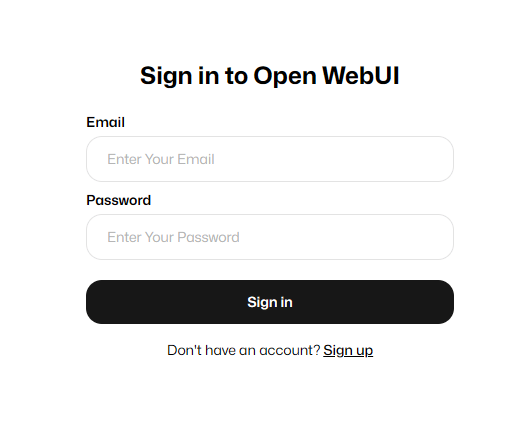
Your Open WebUI instance should now be running. To access it, open your web browser and navigate to http://localhost:3000. Here, you can begin interacting with large language models through a graphical interface.
Step 4: Manual Installation of Open WebUI
Cloning the Repository
If you prefer not to use Docker, you can manually install Open WebUI by cloning its repository from GitHub.
- Clone the Repository:
git clone https://github.com/open-webui/open-webui.git
Setting Up Environment Variables
A configuration file is necessary for setting up environment variables required by Open WebUI. You can create this file by copying an example provided in the repository.
- Create Environment Configuration:
cd open-webui cp .env.example .env
Installing Dependencies
The next step involves installing Node.js and npm if they are not already installed on your system. These are essential for managing JavaScript packages needed by Open WebUI.
- If Node.js is not installed, run:
wget -qO- https://deb.nodesource.com/setup_14.x | sudo -E bash -
sudo apt install -y nodejs
npm install --global npm@latest
npm install
npm run build
npm start
Step 5: Configuring Open WebUI
User Accounts Setup
The first time you access Open WebUI, you’ll be prompted to create an admin account. Follow the on-screen instructions to set up your credentials securely.
Main Dashboard Configuration Options
The dashboard provides various settings that allow you to customize your experience. You can adjust model parameters, manage user roles, and configure system settings directly from this interface.
Add Models to Open WebUI
You can browse available models and add them within the interface easily. The process typically involves selecting a model from a list and configuring its parameters according to your needs.
Troubleshooting Common Issues
Installation Issues
- If you encounter errors during installation, ensure that all prerequisites are met and that your system is fully updated by running:
sudo apt update && sudo apt upgrade -y - If Docker fails to start, check its service status:
sudo systemctl status docker
Error Accessing Open WebUI Interface
- If you cannot access the web interface at `
http://localhost:3000`, ensure that the container is running:docker ps - If it’s not listed, check logs for errors:
docker logs open-webui
Congratulations! You have successfully installed Open WebUI. Thanks for using this tutorial for installing Open WebUI on the Ubuntu 24.04 LTS system. For additional help or useful information, we recommend you check the Open WebUI website.
https://idroot.us/install-open-webui-ubuntu-24-04