
This is our third post for updating Gitlab EE.
That’s not many given that we’ve been using it for almost 3 years now… We’ve avoided intermediate updates for some time. Unfortunately, it’s not possible to upgrade to the latest, by skipping intermediate updates. So we need to be sure the updates are progressive as per guidelines. All this is explained and step by step instructions are given below.
To be clear, we’re currently running GitLab Enterprise Edition v17.6.1 . After the updates detailed below, we will be running v18.9.0
     _______ __  __          __
    / ____(_) /_/ /   ____ _/ /_
   / / __/ / __/ /   / __ `/ __ \
  / /_/ / / /_/ /___/ /_/ / /_/ /
  \____/_/\__/_____/\__,_/_.___/
This very useful GitLab Tool can be used to determine correct migration path and includes notes about intermediate updates.
We can see that we’re six ‘steps’ behind. What we mean by steps is that we need 6 intermediate updates to catch up. Note the warning messages about database and OpenSSL, which could impact site wide SSL auto-renewals and other security features.
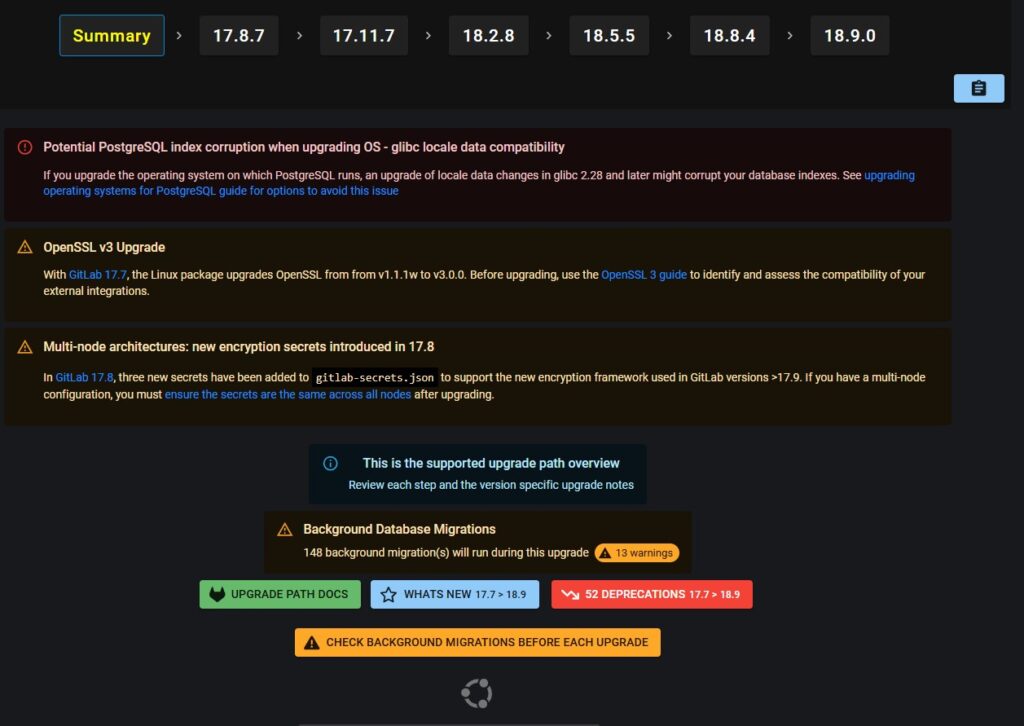
What’s New
Follow this link for a full definition of intermediate update.
The official steps to be taken to update GitLab are given here and as summarised below;
summary of steps to be taken to Upgrade GitLab
summary of steps to be taken to Upgrade GitLab
Upgrade GitLab
Tier: Free, Premium, Ultimate
Offering: Self-managed
Upgrading GitLab is a relatively straightforward process, but the complexity can increase based on the installation method you have used, how old your GitLab version is, if you’re upgrading to a major version, and so on.
Make sure to read the whole page as it contains information related to every upgrade method.
The maintenance policy documentation has additional information about upgrading, including:
- How to interpret GitLab product versioning.
- Recommendations on what release to run.
- How we use patch and security patch releases.
- When we backport code changes.
Upgrade based on installation method
Depending on the installation method and your GitLab version, there are multiple official ways to upgrade GitLab:
The package upgrade guide contains the steps needed to upgrade a package installed by official GitLab repositories.
There are also instructions when you want to upgrade to a specific version.
Plan your upgrade
See the guide to plan your GitLab upgrade.
Check for background migrations before upgrading
Certain releases may require different migrations to be finished before you upgrade to the newer version.
For more information, see background migrations.
Dealing with running CI/CD pipelines and jobs
If you upgrade your GitLab instance while the GitLab Runner is processing jobs, the trace updates fail. When GitLab is back online, the trace updates should self-heal. However, depending on the error, the GitLab Runner either retries, or eventually terminates, job handling.
As for the artifacts, the GitLab Runner attempts to upload them three times, after which the job eventually fails.
To address the above two scenarios, it is advised to do the following prior to upgrading:
- Plan your maintenance.
- Pause your runners, or block new jobs from starting by adding the following to your
/etc/gitlab/gitlab.rb:nginx['custom_gitlab_server_config'] = "location ^~ /api/v4/jobs/request {\n deny all;\n return 503;\n}\n"And reconfigure GitLab with:sudo gitlab-ctl reconfigure - Wait until all jobs are finished.
- Upgrade GitLab.
- Upgrade GitLab Runner to the same version as your GitLab version. Both versions should be the same.
- Unpause your runners and unblock new jobs from starting by reverting the previous
/etc/gitlab/gitlab.rbchange.
Checking for pending advanced search migrations
Tier: Premium, Ultimate
Offering: Self-managed
This section is only applicable if you have enabled the Elasticsearch integration. Major releases require all advanced search migrations to be finished from the most recent minor release in your current version before the major version upgrade. You can find pending migrations by running the following command.
sudo gitlab-rake gitlab:elastic:list_pending_migrations
What do you do if your advanced search migrations are stuck?
In GitLab 15.0, an advanced search migration named DeleteOrphanedCommit can be permanently stuck in a pending state across upgrades. This issue is corrected in GitLab 15.1.
If you are a self-managed customer who uses GitLab 15.0 with advanced search, you will experience performance degradation. To clean up the migration, upgrade to 15.1 or later.
For other advanced search migrations stuck in pending, see how to retry a halted migration.
If you upgrade GitLab before all pending advanced search migrations are completed, any pending migrations that have been removed in the new version cannot be executed or retried. In this case, you must re-create your index from scratch.
What do you do for the error Elasticsearch version not compatible
Confirm that your version of Elasticsearch or OpenSearch is compatible with your version of GitLab.
Upgrading without downtime
Read how to upgrade without downtime.
Upgrading to a new major version
Upgrading the major version requires more attention. Backward-incompatible changes are reserved for major versions. Follow the directions carefully as we cannot guarantee that upgrading between major versions is seamless.
A major upgrade requires the following steps:
- Identify a supported upgrade path. The last minor release of the previous major version is always a required stop due to the background migrations being introduced in the last minor version.
- Ensure that any background migrations have been fully completed before upgrading to a new major version.
- If you have enabled the Elasticsearch integration, then before proceeding with the major version upgrade, ensure that all advanced search migrations are completed.
- If your GitLab instance has any runners associated with it, it is very important to upgrade them to match the current GitLab version. This ensures compatibility with GitLab versions.
Upgrade paths
Upgrading across multiple GitLab versions in one go is only possible by accepting downtime. If you don’t want any downtime, read how to upgrade with zero downtime.
Upgrade paths include required upgrade stops, which are versions of GitLab that you must upgrade to before upgrading to later versions. When moving through an upgrade path:
- Upgrade to the required upgrade stop after your current version.
- Allow the background migrations for the upgrade to finish.
- Upgrade to the next required upgrade stop.
To determine your upgrade path:
- Note where in the upgrade path your current version sits, including required upgrade stops:
- GitLab 15 includes the following required upgrade stops:
- GitLab 16 includes the following required upgrade stops:
16.0.8. Instances with lots of users or large pipeline variables history.16.1.6. Instances with NPM packages in their package registry.16.2.9. Instances with large pipeline variables history.16.3.7.16.7.z. The latest GitLab 16.7 release.16.11.z. The latest GitLab 16.11 release.
- GitLab 17:
17.y.z. The latest GitLab 17 release.
- Consult the version-specific upgrade instructions.
Even when not explicitly specified, upgrade GitLab to the latest available patch release of the major.minor release rather than the first patch release. For example, 16.8.7 instead of 16.8.0.
This includes major.minor versions you must stop at on the upgrade path because there may be fixes for issues relating to the upgrade process.
Specifically around a major version, crucial database schema and migration patches may be included in the latest patch releases.
Upgrade Path tool
To quickly calculate which upgrade stops are required based on your current and desired target GitLab version, see the Upgrade Path tool. This tool is maintained by the GitLab Support team.
To share feedback and help improve the tool, create an issue or merge request in the upgrade-path project.
Earlier GitLab versions
For information on upgrading to earlier GitLab versions, see the documentation archives. The versions of the documentation in the archives contain version-specific information for even earlier versions of GitLab.
For example, the documentation for GitLab 15.11 contains information on versions back to GitLab 12.
Upgrading between editions
GitLab comes in two flavors: Community Edition which is MIT licensed, and Enterprise Edition which builds on top of the Community Edition and includes extra features mainly aimed at organizations with more than 100 users.
Below you can find some guides to help you change GitLab editions.
Community to Enterprise Edition
The following guides are for subscribers of the Enterprise Edition only.
If you wish to upgrade your GitLab installation from Community to Enterprise Edition, follow the guides below based on the installation method:
- Source CE to EE upgrade guides – The steps are very similar to a version upgrade: stop the server, get the code, update configuration files for the new functionality, install libraries and do migrations, update the init script, start the application and check its status.
- Omnibus CE to EE – Follow this guide to upgrade your Omnibus GitLab Community Edition to the Enterprise Edition.
- Docker CE to EE – Follow this guide to upgrade your GitLab Community Edition container to an Enterprise Edition container.
- Helm chart (Kubernetes) CE to EE – Follow this guide to upgrade your GitLab Community Edition Helm deployment to Enterprise Edition.
Enterprise to Community Edition
To downgrade your Enterprise Edition installation back to Community Edition, you can follow this guide to make the process as smooth as possible.
Version-specific upgrading instructions
Each month, major or minor as well as possibly patch releases of GitLab are published along with a release post. You should read the release posts for all versions you’re passing over. At the end of major and minor release posts, there are three sections to look for specifically:
- Deprecations
- Removals
- Important notes on upgrading
These include:
- Steps you must perform as part of an upgrade. For example 8.12 required the Elasticsearch index to be recreated. Any older version of GitLab upgrading to 8.12 or later would require this.
- Changes to the versions of software we support such as ceasing support for IE11 in GitLab 13.
Apart from the instructions in this section, you should also check the installation-specific upgrade instructions, based on how you installed GitLab:
Specific information that follow related to Ruby and Git versions do not apply to Omnibus installations and Helm Chart deployments. They come with appropriate Ruby and Git versions and are not using system binaries for Ruby and Git. There is no need to install Ruby or Git when utilizing these two approaches.
GitLab 17
Before upgrading to GitLab 17, see GitLab 17 changes.
GitLab 16
Before upgrading to GitLab 16, see GitLab 16 changes.
GitLab 15
Before upgrading to GitLab 15, see GitLab 15 changes.
Miscellaneous
We will be using the same procedure but, new commands show in the following image, again based on the fact that we are using DEBIAN-type packages since we’re running GitLab on an Ubuntu Server (ver 22.04)
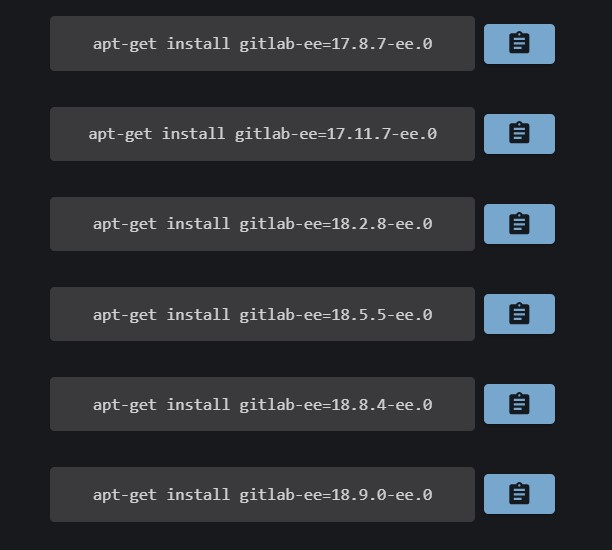
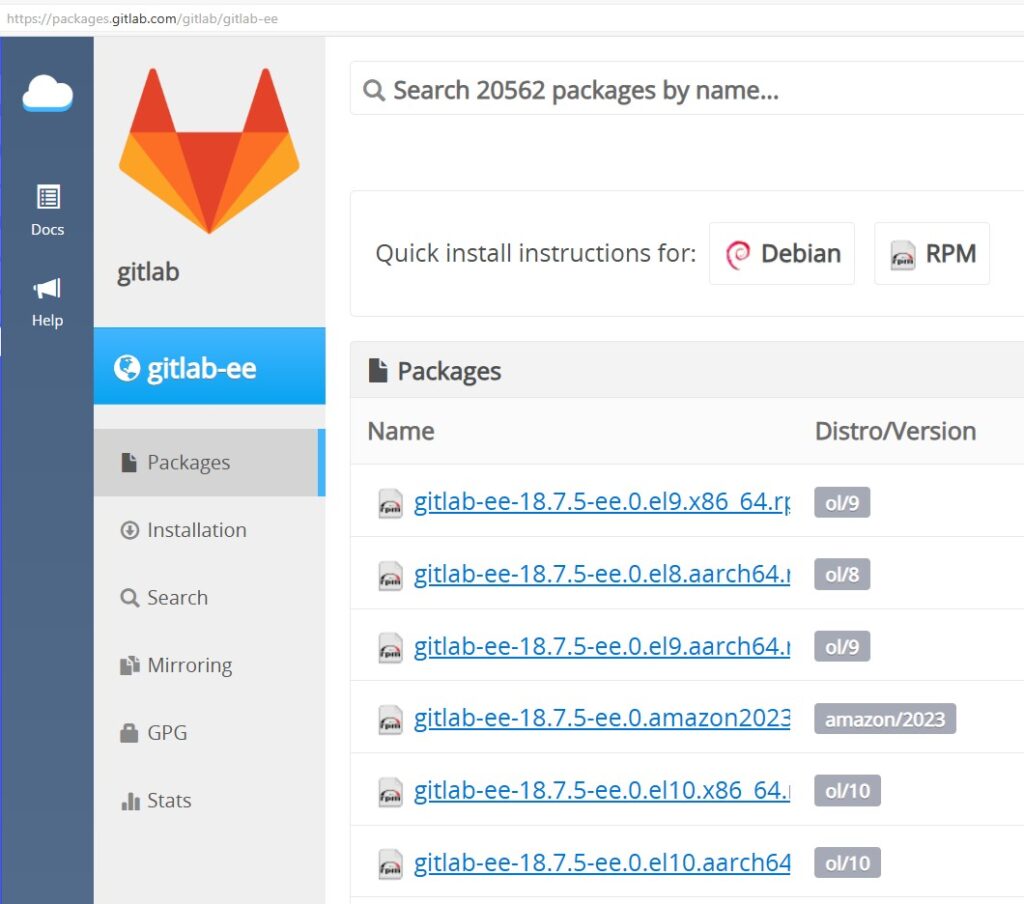
W.r.t. the above image, having just verified that it remains valid and unchanged, we use the same command (as we used during previous e.g. v16.x to v17.x update process, for Debian [and not RPM]) at this GitLab packages page:
Since we're carrying out this update remotely, we paste the following command into our (Putty) CLI page and hit Enter. If the script runs successfully, we receive and acknowledgment and can move on to installing intermediate update packages - as follows;

tamer@git:/etc/apt/trusted.gpg.d$ curl -s https://packages.gitlab.com/install/repositories/gitlab/gitlab-ee/script.deb.sh | sudo bash


tamer@git:~$ curl -s https://packages.gitlab.com/install/repositories/gitlab/gitlab-ee/scrip        t.deb.sh | sudo bash
[sudo] password for tamer:
Detected operating system as Ubuntu/jammy.
Checking for curl...
Detected curl...
Checking for gpg...
Detected gpg...
Detected apt version as 2.4.6
Running apt-get update... done.
Installing apt-transport-https... done.
Installing /etc/apt/sources.list.d/gitlab_gitlab-ee.list...done.
Importing packagecloud gpg key... Packagecloud gpg key imported to /etc/apt/keyrings/gitlab_gitlab-ee-archive-keyring.gpg
done.

The repository is setup! We can now install the packages.
But I should (?) have updated Ubuntu too… So I did, with
$ sudo apt-get-update

$ sudo apt-get-upgrade
That was odd.. After updating Ubuntu, it began updating GitLab too!!! I didn’t ask for or expect that… After a long list of Ubuntu Updates messages, the tail of which with attempt to update GitLab too, is shown below;
Fetched 1,905 MB in 3min 6s (10.3 MB/s)
Extracting templates from packages: 100%
Preconfiguring packages ...
(Reading database ... 229605 files and directories currently installed.)
Preparing to unpack .../motd-news-config_12ubuntu4.7_all.deb ...
Unpacking motd-news-config (12ubuntu4.7) over (12ubuntu4.2) ...
Preparing to unpack .../base-files_12ubuntu4.7_amd64.deb ...
Unpacking base-files (12ubuntu4.7) over (12ubuntu4.2) ...
.
.
.
Preparing to unpack .../79-xe-guest-utilities_7.20.2-0ubuntu1~22.04.2_amd64.deb ...
Unpacking xe-guest-utilities (7.20.2-0ubuntu1~22.04.2) over (7.20.0-9) ...
Preparing to unpack .../80-gitlab-ee_18.9.1-ee.0_amd64.deb ...
gitlab preinstall: It seems you are upgrading from 17.6 to 18.9.
gitlab preinstall: It is required to upgrade to the latest 18.8.x version first before proceeding.
gitlab preinstall: Please follow the upgrade documentation at https://docs.gitlab.com/ee/update/#upgrading-to-a-new-major-version
dpkg: error processing archive /tmp/apt-dpkg-install-t17b66/80-gitlab-ee_18.9.1-ee.0_amd64.deb (--unpack):
 new gitlab-ee package pre-installation script subprocess returned error exit status 1
I ignored that and ran the Script again.
tamer@git:/etc/apt/trusted.gpg.d$ curl -s https://packages.gitlab.com/install/repositories/gitlab/gitlab-ee/script.deb.sh | sudo bash

The repository is setup! You can now install packages.
To reach version 18, we simply need to go through four intermediate updates. The beauty of this tool is that it gives you the actual CLI commands for each update-stage.
Updates – 17.8.7-ee.0
$ sudo apt-get install gitlab-ee=17.8.7-ee.0
.
.
.
gitlab Reconfigured!
Restarting previously running GitLab services
ok: run: crond: (pid 2699800) 0s
ok: run: gitaly: (pid 1723) 1844786s
ok: run: gitlab-workhorse: (pid 2699790) 1s
ok: run: logrotate: (pid 2699810) 0s
ok: run: nginx: (pid 2699824) 1s
ok: run: postgresql: (pid 2699379) 361s
ok: run: puma: (pid 2699829) 0s
ok: run: redis: (pid 1721) 1844787s
ok: run: registry: (pid 2699842) 1s
ok: run: sidekiq: (pid 2699852) 0s

     _______ __  __          __
    / ____(_) /_/ /   ____ _/ /_
   / / __/ / __/ /   / __ `/ __ \
  / /_/ / / /_/ /___/ /_/ / /_/ /
  \____/_/\__/_____/\__,_/_.___/


Upgrade complete! If your GitLab server is misbehaving try running
  sudo gitlab-ctl restart
before anything else.
If you need to roll back to the previous version you can use the database
backup made during the upgrade (scroll up for the filename).
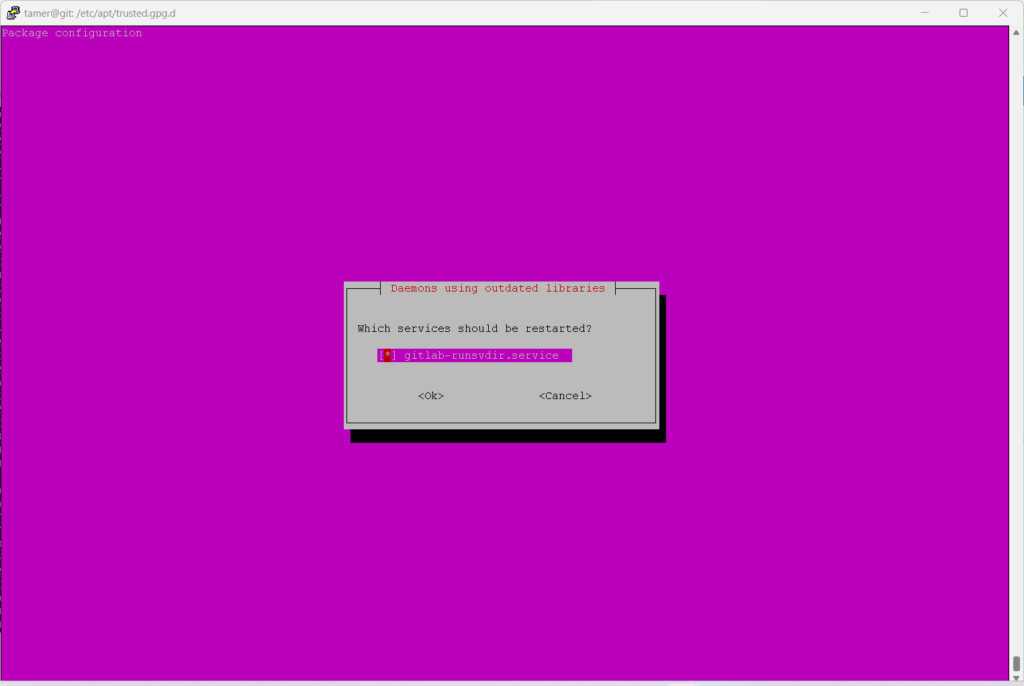
Once complete, a restart is required. Select Ok to confirm this step.
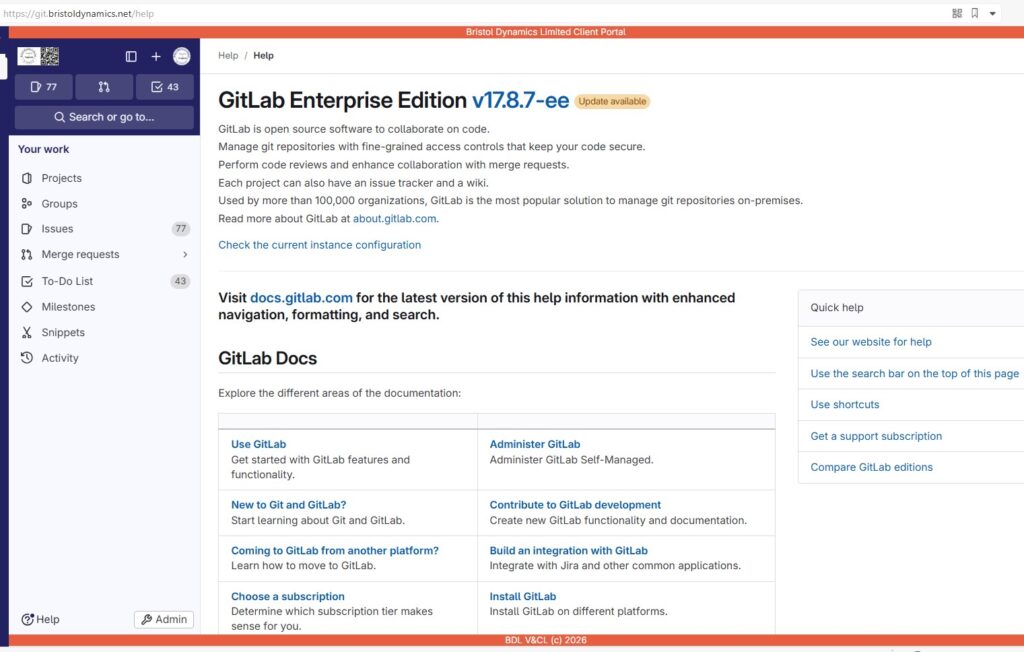
Update – 17.8.7-ee verified
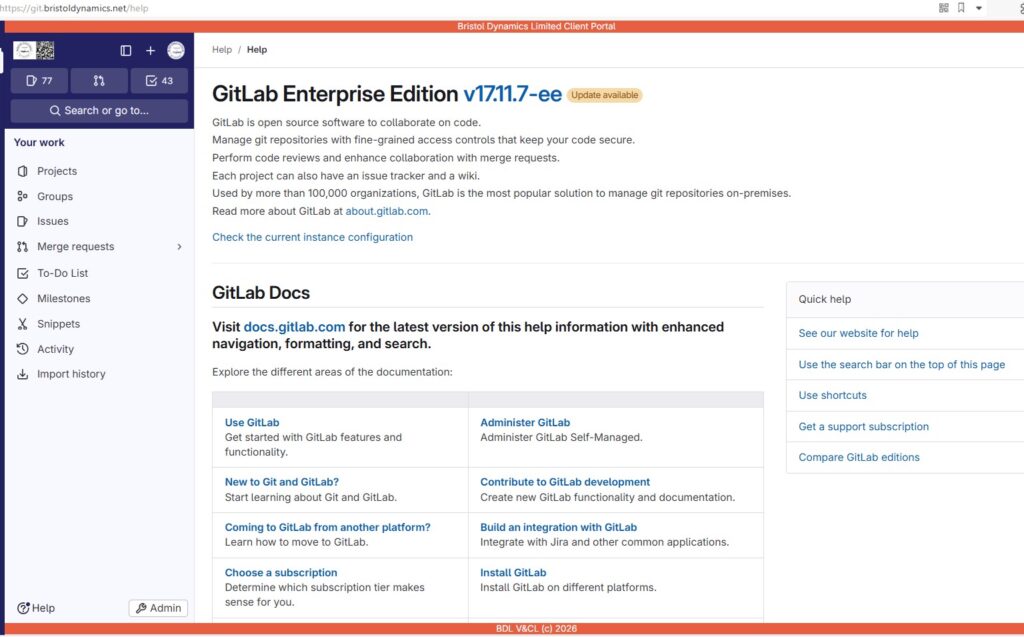
Update – 17.11.7-ee verified
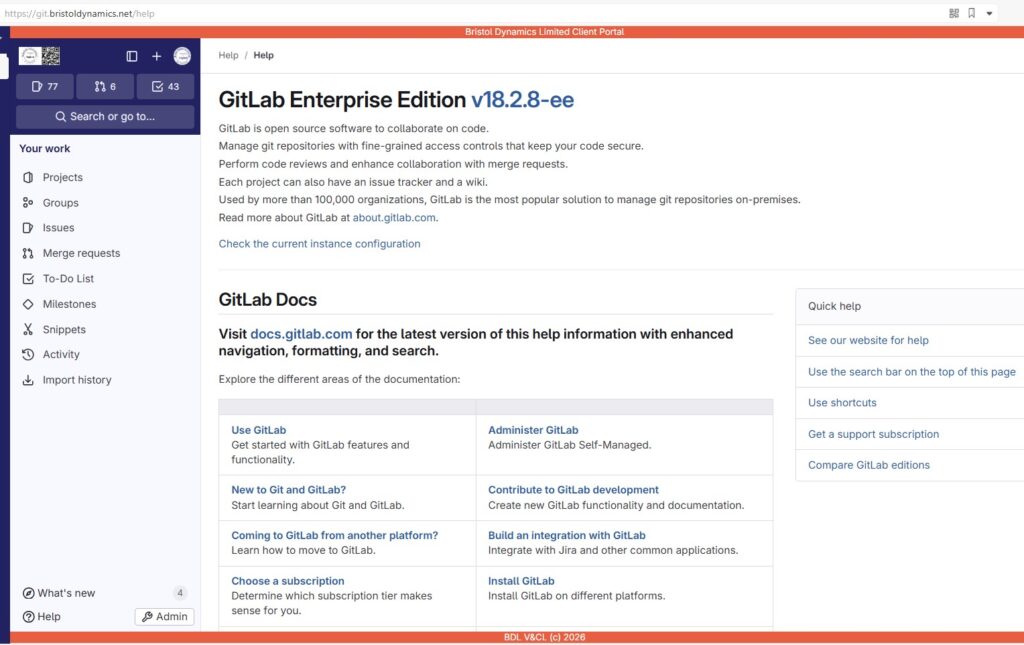
Update – 18.2.8-ee verified
Update gitlab-ee-18-9-0-ee verified
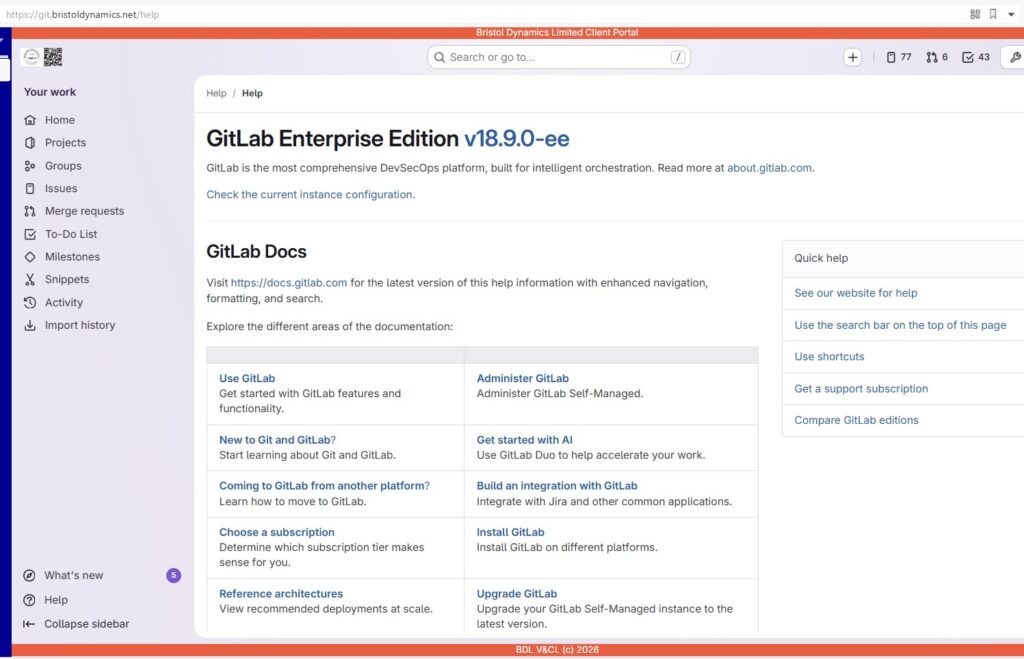
That was successful.
Perfect!!! Again, this needs to be done more frequently as the entire multi-step updates take some time to complete…
Now it’s time to take a Snapshot of the VM from within XCP-ng, where we’re hosting this…
Time to backup the VM, again for the last time.
Now, why not login and enjoy!! @ https://git.bristoldynamics.net