
This article shows how to renew a Letsencrypt certificate that is
- due to expire
- has already expired (slightly different approach is needed!)
Due to expire
We are running a NextCloud application that uses Letsencrypt certificate to allow https connections through port 443.
Potential issues
As you may be aware, NextCloud may be placed in a state of operation called Maintenance Mode. In our case we ignored this and went ahead with the update from the Admin panel (not CLI) for simplicity.
Following completion, we noted that the GUI was indefinitely in a state suggesting it would start up soon but did not. There was an easy fix for this as follows;
Maintenance Mode notification
To get around this problem, we need to SSH into the server – we used Putty for this.
SSL Update with certbot
Lately, we have been receiving reminders from Letsencrypt that our certificate is due to expire soon and needs to be renewed.
The steps taken to renew the certificate are as follows;
- If you do not have direct access to the server, then use Putty (or similar Telnet application) to access the server, CLI
- check what certificates exist
- renew certificate using Apache
Log in to the server
login as: tamer
tamer@62.31.247.103’s password:
Welcome to Ubuntu 22.04.2 LTS (GNU/Linux 5.15.0-105-generic x86_64)
* Documentation: https://help.ubuntu.com
* Management: https://landscape.canonical.com
* Support: https://ubuntu.com/advantage
System information as of Mon 1 Jul 23:38:38 UTC 2024
System load: 0.2470703125 Processes: 219
Usage of /: 64.7% of 116.24GB Users logged in: 1
Memory usage: 42% IPv4 address for eth0: 62.31.247.103
Swap usage: 0%
* Strictly confined Kubernetes makes edge and IoT secure. Learn how MicroK8s
just raised the bar for easy, resilient and secure K8s cluster deployment.
https://ubuntu.com/engage/secure-kubernetes-at-the-edge
Expanded Security Maintenance for Applications is not enabled.
85 updates can be applied immediately.
4 of these updates are standard security updates.
To see these additional updates run: apt list –upgradable
5 additional security updates can be applied with ESM Apps.
Learn more about enabling ESM Apps service at https://ubuntu.com/esm
*** System restart required ***
Last login: Wed May 15 14:09:45 2024
View certbot manual and commands
Note, to exit we need to type :q
tamer@bristoldynamics:~$ man certbot
we can review certificate related logs as follows;
tamer@bristoldynamics:~$ sudo nano /var/log/letsencrypt/letsencrypt.log
#To exit nano editor, CTRL-x
Now, let’s take a look at existing certificates
tamer@bristoldynamics:~$ sudo certbot certificates
Saving debug log to /var/log/letsencrypt/letsencrypt.log
– – – – – – – – – – – – – – – – – – – – – – – – – – – – – – – – – – – – – – – –
Found the following certs:
Certificate Name: hub.bristoldynamics.net
Serial Number: 32d2f1fa700c173ab9bf6d77d1b06e89d05
Key Type: RSA
Domains: hub.bristoldynamics.net
Expiry Date: 2024-07-07 13:34:41+00:00 (VALID: 5 days)
Certificate Path: /etc/letsencrypt/live/hub.bristoldynamics.net/fullchain.pem
Private Key Path: /etc/letsencrypt/live/hub.bristoldynamics.net/privkey.pem
we are going to use the certonly verb and select option-1 authenticate with Apache Web Server, as follows;
tamer@bristoldynamics:~$ sudo certbot certonly
Saving debug log to /var/log/letsencrypt/letsencrypt.log

How would you like to authenticate with the ACME CA?
- - - - - - - - - - - - - - - - - - - - - - - - - - - - - - - - - - - - - - - -
1: Apache Web Server plugin (apache)
2: Spin up a temporary webserver (standalone)
3: Place files in webroot directory (webroot)
- - - - - - - - - - - - - - - - - - - - - - - - - - - - - - - - - - - - - - - -
Select the appropriate number [1-3] then [enter] (press 'c' to cancel): 1
Please enter the domain name(s) you would like on your certificate (comma and/or
space separated) (Enter 'c' to cancel): hub.bristoldynamics.net
Renewing an existing certificate for hub.bristoldynamics.net

# Renewal was successful as detailed below;

Successfully received certificate.
Certificate is saved at: /etc/letsencrypt/live/hub.bristoldynamics.net/fullchain.pem
Key is saved at:         /etc/letsencrypt/live/hub.bristoldynamics.net/privkey.pem
This certificate expires on 2024-09-29.
These files will be updated when the certificate renews.
Certbot has set up a scheduled task to automatically renew this certificate in the background.

- - - - - - - - - - - - - - - - - - - - - - - - - - - - - - - - - - - - - - - -
If you like Certbot, please consider supporting our work by:
 * Donating to ISRG / Let's Encrypt:   https://letsencrypt.org/donate
 * Donating to EFF:                    https://eff.org/donate-le
- - - - - - - - - - - - - - - - - - - - - - - - - - - - - - - - - - - - - - - -
tamer@bristoldynamics:~$

# The NextCloud Maintenance Mode issue


We have updated SSL certificate with one simple certbot CLI command resulting in extending the certificate for another 3 months.

[OPTIONAL]
tamer@bristoldynamics:~$ sudo certbot certificates
Saving debug log to /var/log/letsencrypt/letsencrypt.log

[REQUIRED]
tamer@bristoldynamics:~$ sudo certbot certonly
Saving debug log to /var/log/letsencrypt/letsencrypt.log

That's it. Though, be sure to set the the server's Maintenance Mode in the PHP file at;
$ sudo nano /var/www/html/nextcloud/config.php 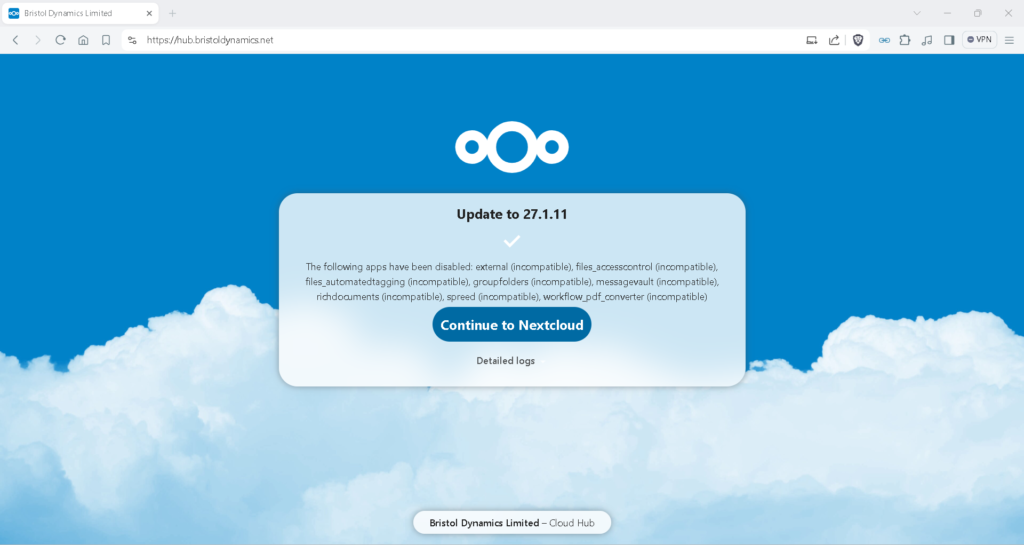
That is it. We have now updated our Letsencrypt certificate.
Update certificate – 20241110
Note that we’re only entering bold-text shown below… And our certificate gets renewed for 3 months only using this method…. Perhaps look into how we could renew for longer another time…
tamer@bristoldynamics:~$ sudo certbot certonly
Saving debug log to /var/log/letsencrypt/letsencrypt.log

How would you like to authenticate with the ACME CA?
- - - - - - - - - - - - - - - - - - - - - - - - - - - - - - - - - - - - - - - -
1: Apache Web Server plugin (apache)
2: Spin up a temporary webserver (standalone)
3: Place files in webroot directory (webroot)
- - - - - - - - - - - - - - - - - - - - - - - - - - - - - - - - - - - - - - - -
Select the appropriate number [1-3] then [enter] (press 'c' to cancel): 1
Please enter the domain name(s) you would like on your certificate (comma and/or
space separated) (Enter 'c' to cancel): hub.bristoldynamics.net
Renewing an existing certificate for hub.bristoldynamics.net

Successfully received certificate.
Certificate is saved at: /etc/letsencrypt/live/hub.bristoldynamics.net/fullchain.pem
Key is saved at:         /etc/letsencrypt/live/hub.bristoldynamics.net/privkey.pem
This certificate expires on 2025-02-08.
These files will be updated when the certificate renews.
Certbot has set up a scheduled task to automatically renew this certificate in the background.

- - - - - - - - - - - - - - - - - - - - - - - - - - - - - - - - - - - - - - - -
If you like Certbot, please consider supporting our work by:
 * Donating to ISRG / Let's Encrypt:   https://letsencrypt.org/donate
 * Donating to EFF:                    https://eff.org/donate-le
- - - - - - - - - - - - - -
Has already expired (20251007 update)
If the certificate has already expired, we take a different approach..
During this different (certificate already expired) starting point, we found the following web-site useful. Particularly the command to test Apache2 syntax
tamer@bristoldynamics:/etc/apache2/sites-available$ sudo apache2ctl configtest

tamer@bristoldynamics:/etc/apache2/sites-available$ Syntax OKOverview: temporarily disable port *:443 and enable port *:80 in our <Virtualhost> section of configuration file
tamer@bristoldynamics:/etc/apache2/sites-available$ sudo nano /etc/apache2/sites-available/nextcloud.conf -lThen we restart apache2 (making it [temporarily and actively] listen on port 80
Request our certificte, as describe above
Then change the /etc/apache2/sites-available/nextcloud.conf file to listen on *:443
and
tamer@bristoldynamics:/etc/apache2/sites-available$ restart apache2 We’re done.. navigate your browser to the web-site to verify that SSL certificate is active.